Register a dynamic client to issue personal API tokens.
Quantive enbles you to quickly issue and manage API tokens on behalf of the users in your organization. You can use these tokens to integrate with third party systems or authenticate with your own integration using the Quantive REST API. The API tokens issued via the UI in your account have no expiration date. They can be revoked thus effectively invalidating them.
If you would like to dynamically issue an API token on behalf of the current user, Quantive enables you to register your own dynamic client that can handle this operation. This functionality is based on the OpenID Connect Dynamic Client Registration specification.
Register your dynamic client
Depending on where your Quantive StrategyAI account is hosted, you’ll need to make a POST request to the corresponding application registration endpoint https://auth(.us/.as).quantive.com/oidc/register . For example, accounts hosted in our US data center will have to make the call to https://auth.us.quantive.com/oidc/register. The endpoint requires no authorization. You must specify a name for the application you’re registering and the callback URLs that you’d like to register for it. For example:
curl --location 'https://auth.quantive.com/oidc/register' \
--header 'content-type: application/json' \
--data '{
    "client_name": "Demo Dynamic Application",
    "redirect_uris": [
        "https://application.example.com/callback",
        "https://application.example.com/callback2"
    ]
}'
If the registration is successful, you will receive a response with the application client_id and client_secret. For example:
{
    "client_name": "Demo Dynamic Application",
    "client_id": "zutgDZMabaOBzVvdQZoZEQc0mN7tLKNd",
    "client_secret": "ICKbrAq0d…6oWTzR",
    "redirect_uris": [
        "https://application.example.com/callback",
        "https://application.example.com/callback2"
    ],
    "client_secret_expires_at": 0
}
Make sure to save he client_id and client_secret in a safe location as you’ll need them later when executing authentication and authorization flows.
NOTE: Once registered, you’re not able to modify the application settings. In case this is necessary, you can contact the Quantive Technical Support team at support@quantive.com.
Get the application enabled
Once you have registered your application, contact Quantive Technical Support team at support@quantive.com and request enabling your dynamic client. Please specify the client_id of your client.
Obtain a token
Get an authorization code
Once you’ve received a confirmation from the Quantive team that your client is enabled, you can proceed to using it to issue API tokens. To obtain an API token via your registered dynamic client follows these steps:
- Implement a GET request to the https://auth(.us/.as).quantive.com/authorize endpoint and pass the following URL params:
- audience: https://app.quantive.com/api
- scope: offline_access
- response_type: code
- client_id: the client_id of the dynamic client you registered
- redirect_uri: one of the redirect_uris you specified when registering the client
For example:
curl --location 'https://auth.quantive.com/authorize?audience=https%3A%2F%2Fapp.quantive.com%2Fapi&scope=offline_access&response_type=code&client_id=zutgDZMabaOBzVvdQZoZEQc0mN7tLKNd&redirect_uri=https%3A%2F%2Fapplication.example.com%2Fcallback'
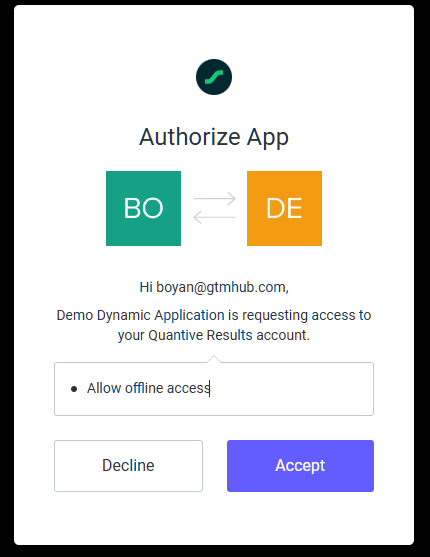
As a result, the user will be taken to your Quantive StrategyAI account’s login page. After successful login they will be asked to grant consent for your dynamic application:
 .
.
Once the user clicks on Accept, they will be redirected to the provided redirect_uri and an authorization code will be included in the url path. For example:
https://application.example.com/callback?code=...51FPX094Bv
Exchange the authorization code for an access token
Use the code and make a POST request to the https://auth(.us/as).quantive.com/oauth/token endpoint. Pass the following params as urlencoded form data in your request body:
- grant_type: authorization_code
- client_id: the client_id of the dynamic client you registered
- client_secret: the client_secret of the dynamic client you registered
- code: the authorization code you obtained in the previous step
- redirect_uri: one of the redirect_uris you specified when registering the client
For example:
curl --location 'https://auth.quantive.com/oauth/token' \
--header 'content-type: application/x-www-form-urlencoded' \
--data-urlencode 'grant_type=authorization_code' \
--data-urlencode 'client_id=zutgDZMabaOBzVvdQZoZEQc0mN7tLKNd' \
--data-urlencode 'client_secret=…hUV4dHD7l' \
--data-urlencode 'code=..rH8W5F-g' \
--data-urlencode 'redirect_uri=https://application.example.com/callback'
A successful response will include a valid access_token that you can use to work with the Quantive REST API. The response also includes a refresh token. For example:
{
    "access_token": "eyJhbGciOiJSUzI1NiIsI…",
    "refresh_token": "Ke5EfRB2tIUlZ…",
    "scope": "offline_access",
    "expires_in": 86400,
    "token_type": "Bearer"
}
Using the refresh token to issue a new API token
You can use the Refresh Token to get a new access token. To refresh your token, make a POST request to the https://auth(.us/as).quantive.com/oauth/token endpoint. Pass the following params as urlencoded form data in your request body:
- grant_type: refresh_token
- client_id: the client_id of the dynamic client you registered
- client_secret: the client_secret of the dynamic client you registered
- refresh_token: the refresh token you obtained when getting the access_token in the previous paragraph.
- redirect_uri: one of the redirect_uris you specified when registering the client
For example:
curl --location 'https://auth.quantive.com/oauth/token' \
--header 'content-type: application/x-www-form-urlencoded' \
--data-urlencode 'grant_type=refresh_token' \
--data-urlencode 'client_id=zutgDZMabaOBzVvdQZoZEQc0mN7tLKNd' \
--data-urlencode 'client_secret=ICKbrAq0d…' \
--data-urlencode 'refresh_token=Ke5Ef…'
As a successful outcome the response will include your new access token. For example:
{
    "access_token": "eyJhbGciOi…",
    "scope": "offline_access",
    "expires_in": 86400,
    "token_type": "Bearer"
}


